
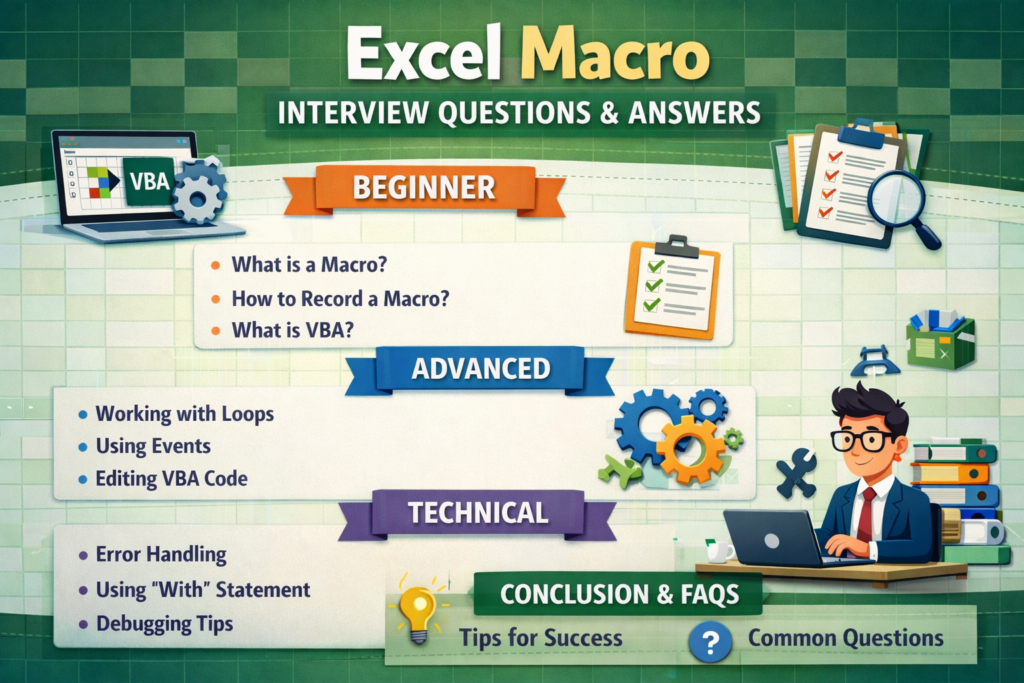
Excel Macro Interview Questions and Answers
Excel macros are a powerful feature used to automate repetitive tasks in Microsoft Excel. Many companies expect professionals working in data analysis, finance, accounting, and digital marketing to understand macros and VBA basics.
If you are preparing for an Excel interview, knowing macro-related questions can help you stand out. This guide covers beginner, advanced, and technical Excel macro interview questions and answers to help you prepare confidently.

Beginner Excel Macro Interview Questions and Answers
1. What is a Macro in Excel?
A macro in Excel is a set of instructions that automates repetitive tasks. It records user actions and converts them into commands that Excel can execute automatically.
Example: Formatting reports, generating invoices, or cleaning large datasets.
2. What is VBA in Excel?
VBA (Visual Basic for Applications) is the programming language used to create and edit Excel macros.
It allows users to create advanced automation beyond simple macro recording.
3. How do you create a macro in Excel?
You can create a macro by:
- Go to Developer Tab
- Click Record Macro
- Perform the actions you want to automate
- Click Stop Recording
Excel stores the steps as VBA code.
4. Where are macros stored in Excel?
Macros can be stored in:
- Current Workbook
- New Workbook
Personal Macro Workbook (available in all Excel files)
5. What is the Developer Tab?
The Developer Tab is a special Excel tab that provides access to:
- VBA Editor
- Macro recording
- Form controls
- ActiveX controls
6. What are the advantages of using macros?
Benefits include:
- Automation of repetitive tasks
- Time saving
- Reducing manual errors
- Increasing productivity
Intermediate Excel Macro Interview Questions
7. What is the difference between a macro and VBA?
A macro is a recorded automation process, while VBA is the programming language used to write custom automation scripts.
8. What is the Personal Macro Workbook?
Personal Macro Workbook is a hidden Excel file that stores macros so they can be used in any Excel workbook.
9. How can you edit a macro?
Steps:
- Press ALT + F11
- Open VBA Editor
- Select the macro module
Edit the VBA code
10. What are Modules in VBA?
Modules are containers where macro code is stored.
They help organize VBA programs.
11. What is the difference between Sub and Function in VBA?
Sub Procedure
- Executes commands
- Does not return a value
Function Procedure
- Performs calculations
- Returns a value
Example:
Sub Example()
MsgBox “Hello”
End Sub
Advanced Excel Macro Interview Questions
12. What are events in VBA?
Events are actions that automatically trigger macros.
Examples:
- Workbook Open
- Worksheet Change
Button Click
13. What is an Object in VBA?
An object is an element in Excel that can be controlled using VBA.
Examples:
- Workbook
- Worksheet
- Range
- Chart
14. What is the difference between Active Cell and Selection?
Active Cell
Refers to the currently selected cell.
Selection
Refers to all selected cells.
15. What are loops in VBA?
Loops allow code to repeat multiple times.
Common loops:
- For Loop
- Do While Loop
- Do Until Loop
Example:
For i = 1 To 10
Cells(i,1).Value = i
Next i
16. What is Error Handling in VBA?
Error handling prevents macro crashes when errors occur.
Example:
On Error Resume Next
Technical Excel Macro Interview Questions
17. What is the difference between. Value and. Value2?
.Value formats data based on cell format.
. Value2 returns raw data without formatting.
18. What is With Statement in VBA?
The With statement simplifies code when working with the same object multiple times.
Example:
With Range(“A1”)
.Value = 100
.Font.Bold = True
End With
19. What is a User Defined Function (UDF)?
A UDF is a custom function created using VBA.
Example:
Function AddNumbers(a, b)
AddNumbers = a + b
End Function
20. What is Debugging in VBA?
Debugging is the process of identifying and fixing errors in macro code.
Tools include:
- Breakpoints
- Step Into (F8)
Immediate Window
21. What is a Workbook Object?
Pros and Cons of Excel Macros
Pros of Excel Macros
1. Automation of Repetitive Tasks
Excel macros help automate repetitive tasks such as formatting data, generating reports, and data entry, saving significant time.
2. Increases Productivity
By automating complex tasks, macros allow users to complete work faster and focus on more important activities.
3. Reduces Human Errors
Manual data processing can lead to mistakes. Macros perform tasks consistently and accurately every time.
4. Handles Large Data Efficiently
Macros can process large datasets quickly, which is helpful for analysts, accountants, and MIS professionals.
5. Customizable with VBA
Using VBA (Visual Basic for Applications), users can create highly customized automation solutions in Excel.
Cons of Excel Macros
1. Security Risks
Macros from unknown sources may contain malicious code or viruses, which can harm your system.
2. Requires VBA Knowledge
Advanced macros require understanding of VBA programming, which may be difficult for beginners.
3. Compatibility Issues
Some macros may not work properly across different Excel versions or operating systems.
4. File Size Can Increase
Workbooks containing macros may become larger and slower to open.
5. Maintenance Required
Macros sometimes need updates or debugging if Excel settings or data structures change.
Common Excel Macro Coding Example
Example macro to highlight cells:
Sub HighlightCells()
Range(“A1:A10”).Interior.Color = vbYellow
End Sub
This macro highlights cells from A1 to A10 in yellow.
Add Your Heading Text Here
FAQs
A macro in Excel is a set of recorded instructions that automate repetitive tasks. It allows users to perform complex actions with a single command, saving time and reducing manual effort.
VBA (Visual Basic for Applications) is the programming language used to create and customize Excel macros. It allows users to write code to automate tasks and build advanced Excel applications.
Companies use Excel macros to automate repetitive tasks such as report generation, data formatting, data cleaning, and financial calculations. This improves productivity and reduces human errors.
A macro is an automated set of actions recorded in Excel, while VBA is the programming language used to write and modify those macros for advanced automation.
To enable macros:
- Open Excel
- Go to File → Options
- Select Trust Center
- Click Trust Center Settings
Enable Macros
The shortcut key to open the VBA editor in Excel is ALT + F11.
Excel macros can be stored in:
- The current workbook
- A new workbook
The Personal Macro Workbook (accessible in all Excel files)
Advantages include:
- Automating repetitive tasks
- Saving time
- Improving accuracy
- Increasing productivity
Handling large datasets efficiently
Yes, Excel macros can run automatically using triggers such as opening a workbook, changing a worksheet, or clicking a button.
Excel macros are safe when created by trusted sources. However, macros from unknown files may contain malicious code, so it is important to enable macros only for trusted documents.
The shortcut key to run a macro is Alt + F8, which opens the Macro dialog box where you can select and run a macro.
A macro-enabled workbook is an Excel file saved with the .xlsm extension that allows macros and VBA code to run inside the file.
Most macros work in modern Excel versions, but some VBA features may behave differently depending on the Excel version or operating system.
The Macro Recorder captures user actions in Excel and automatically converts them into VBA code to automate the same task.
Yes, Excel macros are widely used to automate report generation, data formatting, data cleaning, and dashboard updates.
A module is a container in the VBA editor where macro code and procedures are stored and organized.
The workbook object represents the entire Excel file, while the worksheet object represents individual sheets inside the workbook.
You can stop a running macro by pressing Ctrl + Break or by clicking the Stop button in the VBA editor.
Some limitations include security restrictions, compatibility issues across systems, and the need for VBA knowledge for advanced automation.
Yes, data analysts use Excel macros to automate repetitive data processing tasks, generate reports, and improve efficiency in handling large datasets.
Conclusion
Excel macros are essential for automating repetitive tasks and improving efficiency in data management. From beginner concepts like recording macros to advanced topics like VBA loops and debugging, mastering macros can significantly enhance productivity.
Understanding these Excel macro interview questions and answers will help candidates perform well in job interviews related to data analysis, accounting, finance, and business operations.
With regular practice and real-world projects, you can become highly proficient in Excel automation using macros and VBA.